
Gift cards are an easy way to give customers store credit they can use now or later. They’re commonly used for returns, customer service credits, or as something customers can buy and gift to someone else.
Everything related to gift cards lives in one place, and once they’re issued, OtterOrder keeps track of the balance automatically.
Where to find gift cards
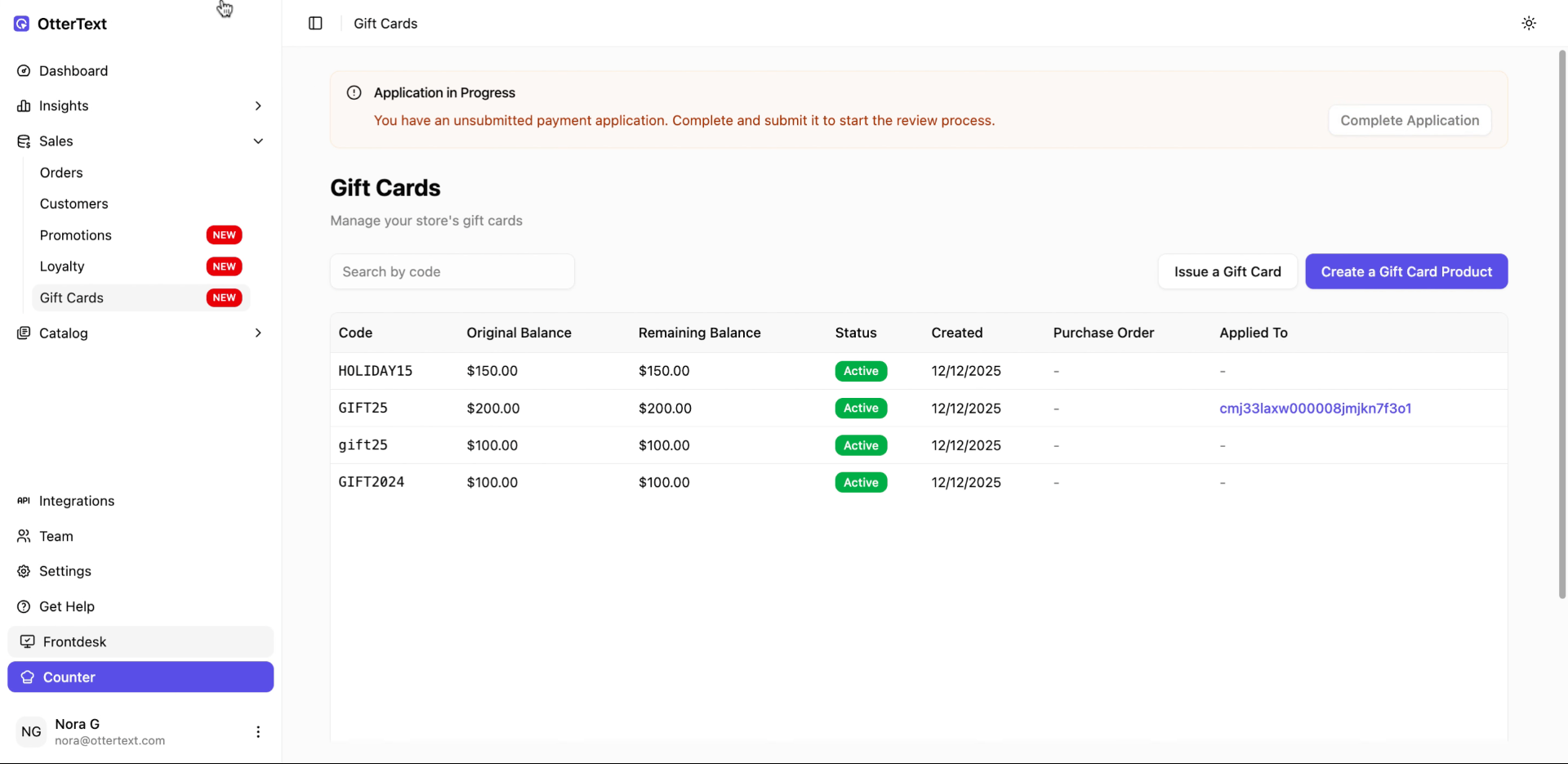
Open the left-hand menu, click Sales, then click Gift Cards.
This page shows every gift card you’ve issued. You’ll see the code, the original amount, what’s left on it, and whether it’s active. If a gift card has already been used, clicking Applied To takes you straight to the order where it was applied, which makes it easy to double-check what happened.
Issuing a gift card
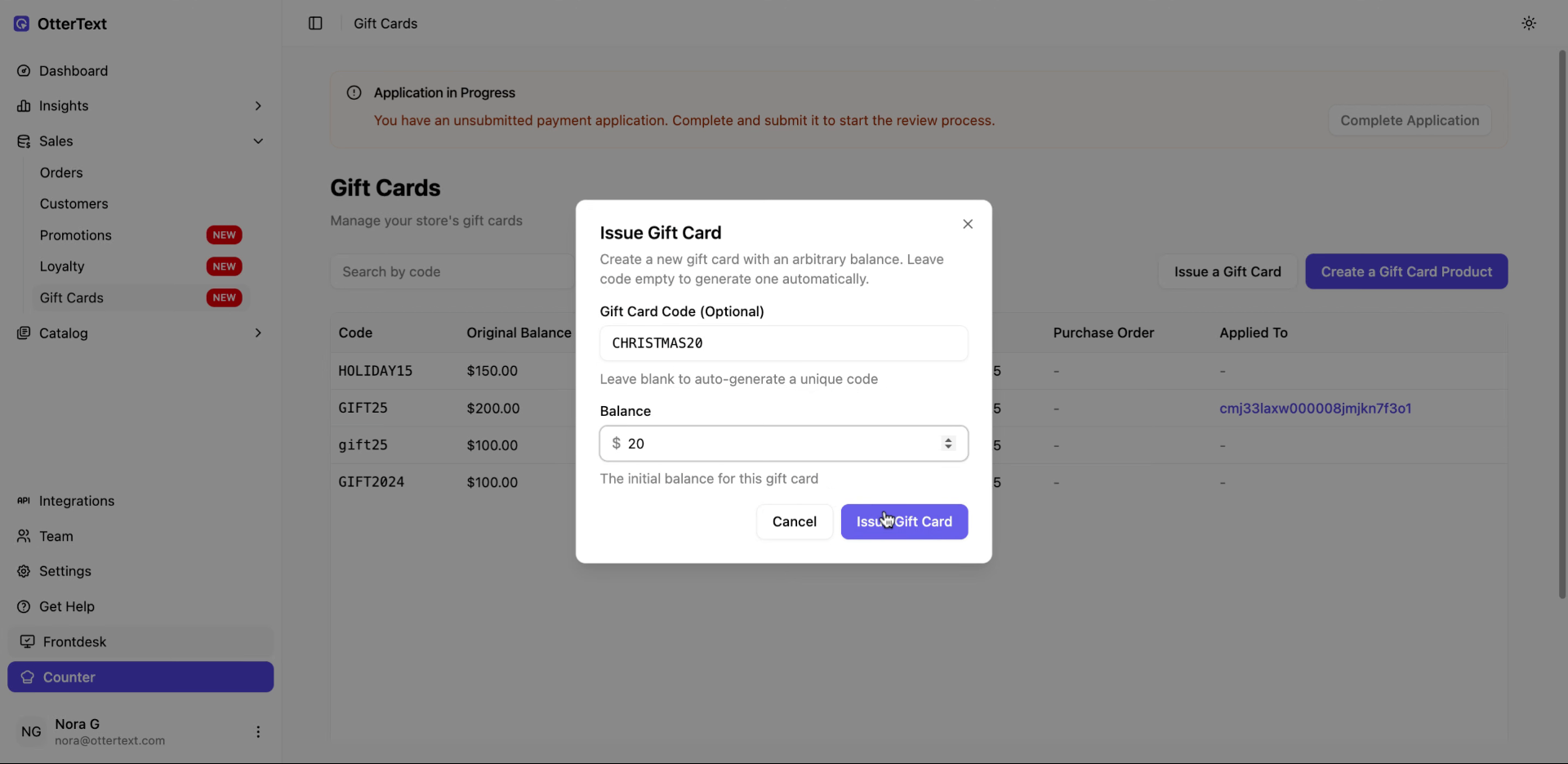
To create one, click Issue a Gift Card. A small window opens where you set it up.
If you type in a gift card code yourself, it has to be ALL CAPS — lowercase codes won’t work. You can also leave the code blank and let OtterOrder generate one for you.
Once you set the amount and confirm, the gift card is live immediately and ready to use.
Using a gift card at checkout
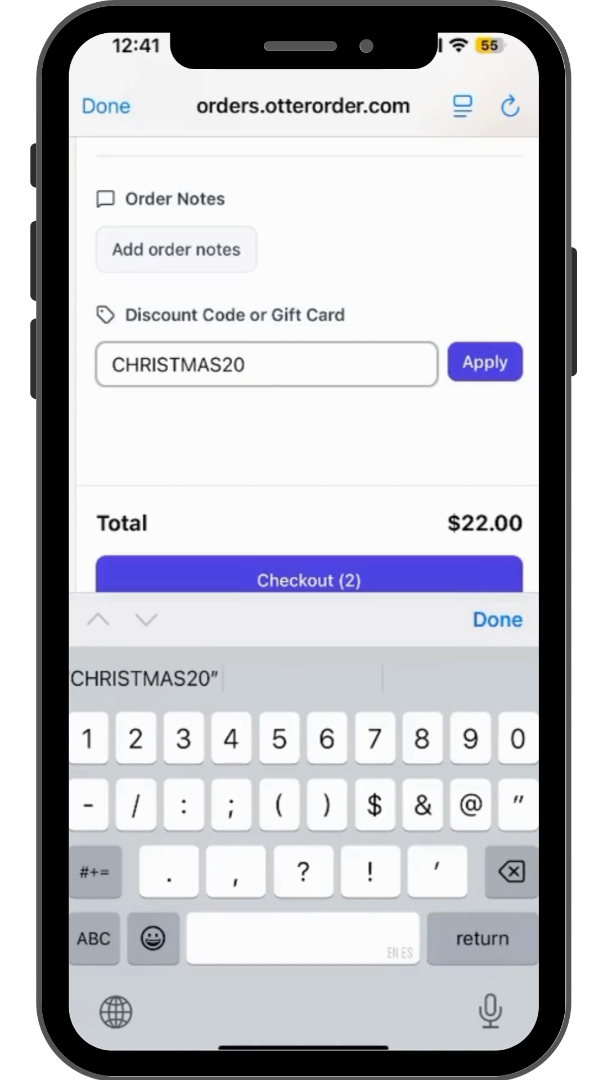
Gift cards are applied during checkout. You just enter the code and click Apply.
You’ll immediately see how much of the gift card was used on that order and how much is still left. If there’s remaining balance, it doesn’t go away — you can use the same gift card again on a different order later. OtterOrder keeps track of it for you automatically.
Having gift cards as a product
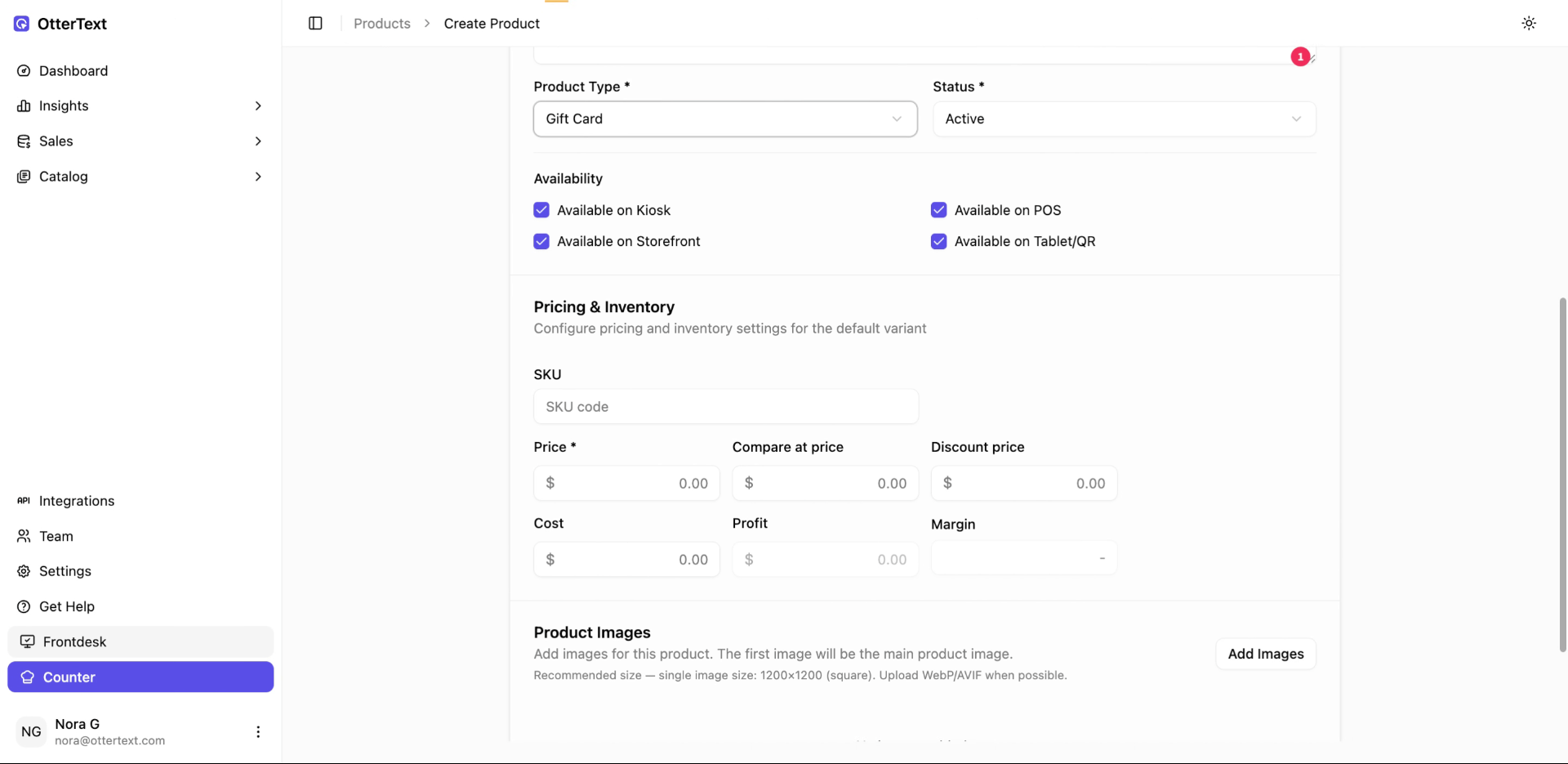
You can also sell gift cards like a normal product.
When you create a gift card product and set a price, customers can buy it the same way they buy anything else. Once it’s purchased, OtterOrder creates the gift card balance behind the scenes, and that balance can then be used at checkout with the gift card code.
This works well for online sales, in-store purchases, or when customers want to buy credit for someone else.
Keeping track of gift cards
You don’t need to manage balances manually. Each gift card always shows how much was issued, how much has been used, and what’s left. If you ever need to see where a balance was applied, you can click into the related order directly.