
OtterOrder allows you to customize the appearance of your QR codes so they match your branding and are easy for customers to identify. You can update the center image, change the dot style, and choose custom colors — all directly from your Seating settings.
Access Your QR Code Settings
-
Log in to your OtterOrder dashboard.
-
In the left-hand menu, go to Settings → Seating.
-
Find the table or lane you want to update.
-
Click the QR code icon next to it to open the design editor.
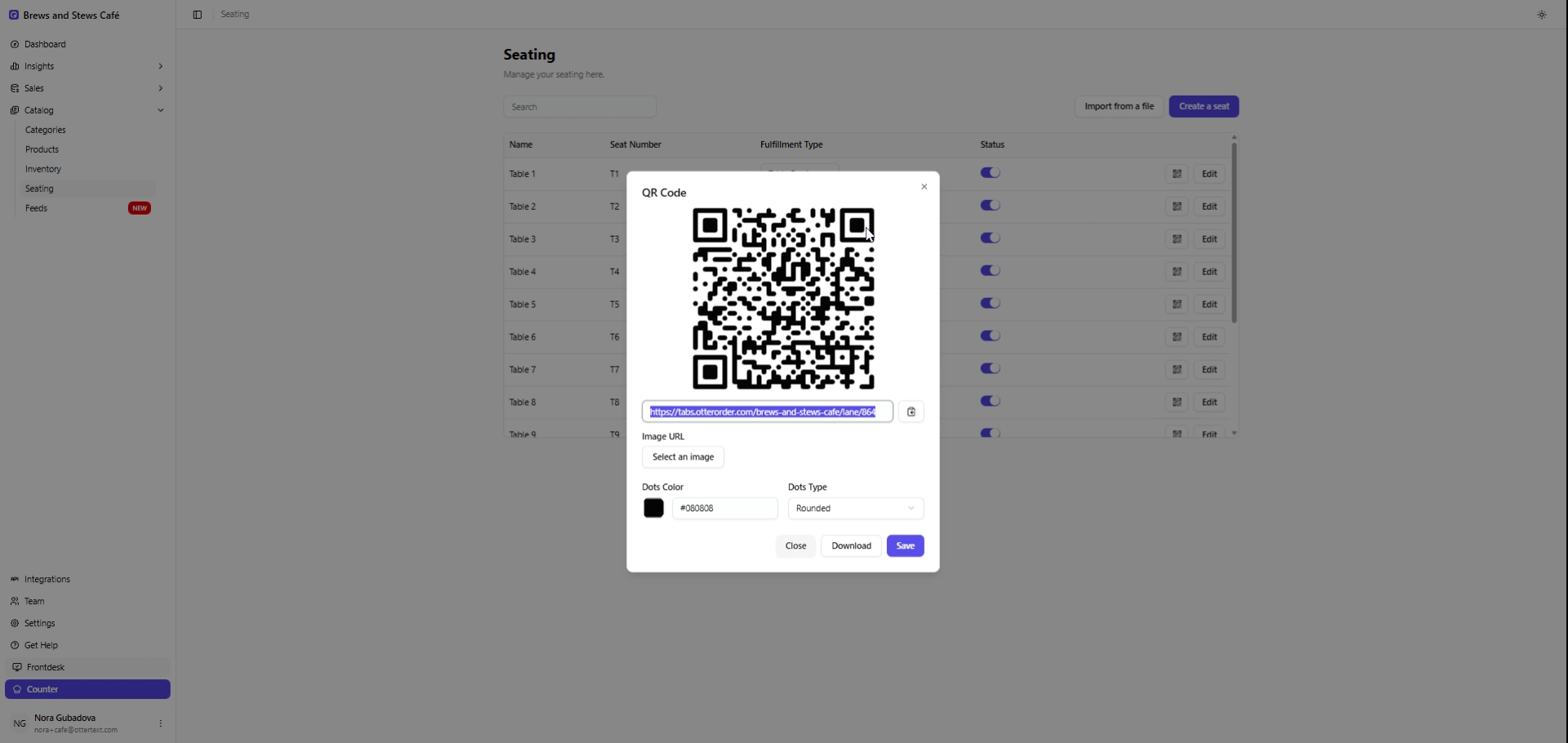
Customize the Center Image
You can upload an image to appear in the middle of your QR code. This could be:
-
Your logo
-
A table number (e.g., T1, T2)
-
A branded icon or graphic
QR codes are designed with more data capacity than needed for simple table assignments, which leaves unused space inside the pattern. OtterOrder allows you to place an image in that space without affecting scanability, as long as the file you upload is a standard image.
Adjust the Dot Style and Colors
Inside the editor, you can change:
-
The dot style (shape of the QR code pattern)
-
The color of the dots
These options help you match your QR codes to your brand or make them more visible on the table.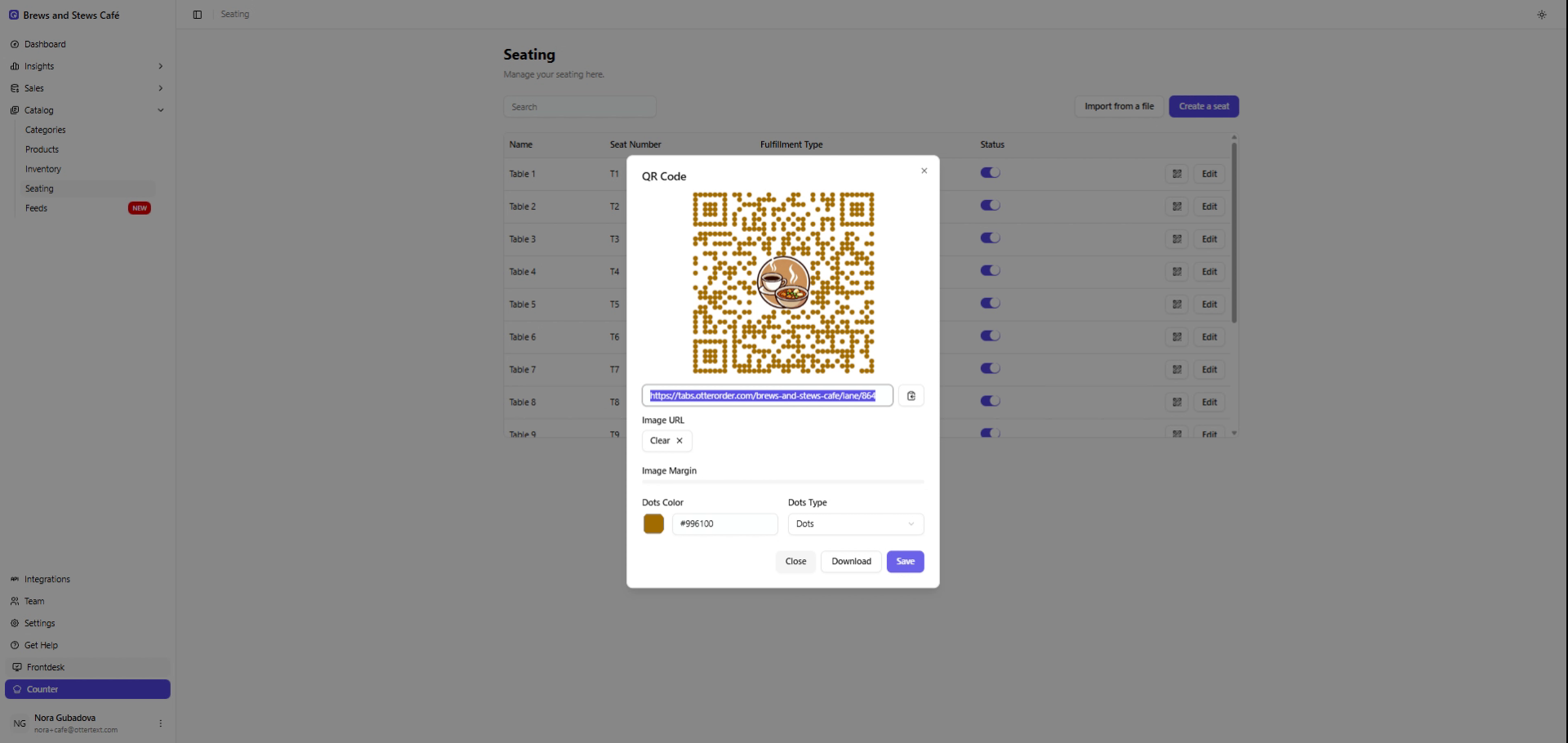
Download and Use Your Updated QR Code
After customizing your design:
-
Click Download to save the updated QR code.
-
Print and place it on the correct table.
-
Save your changes to apply the design.
Your new QR code will scan normally and customers will see the personalized version when ordering.