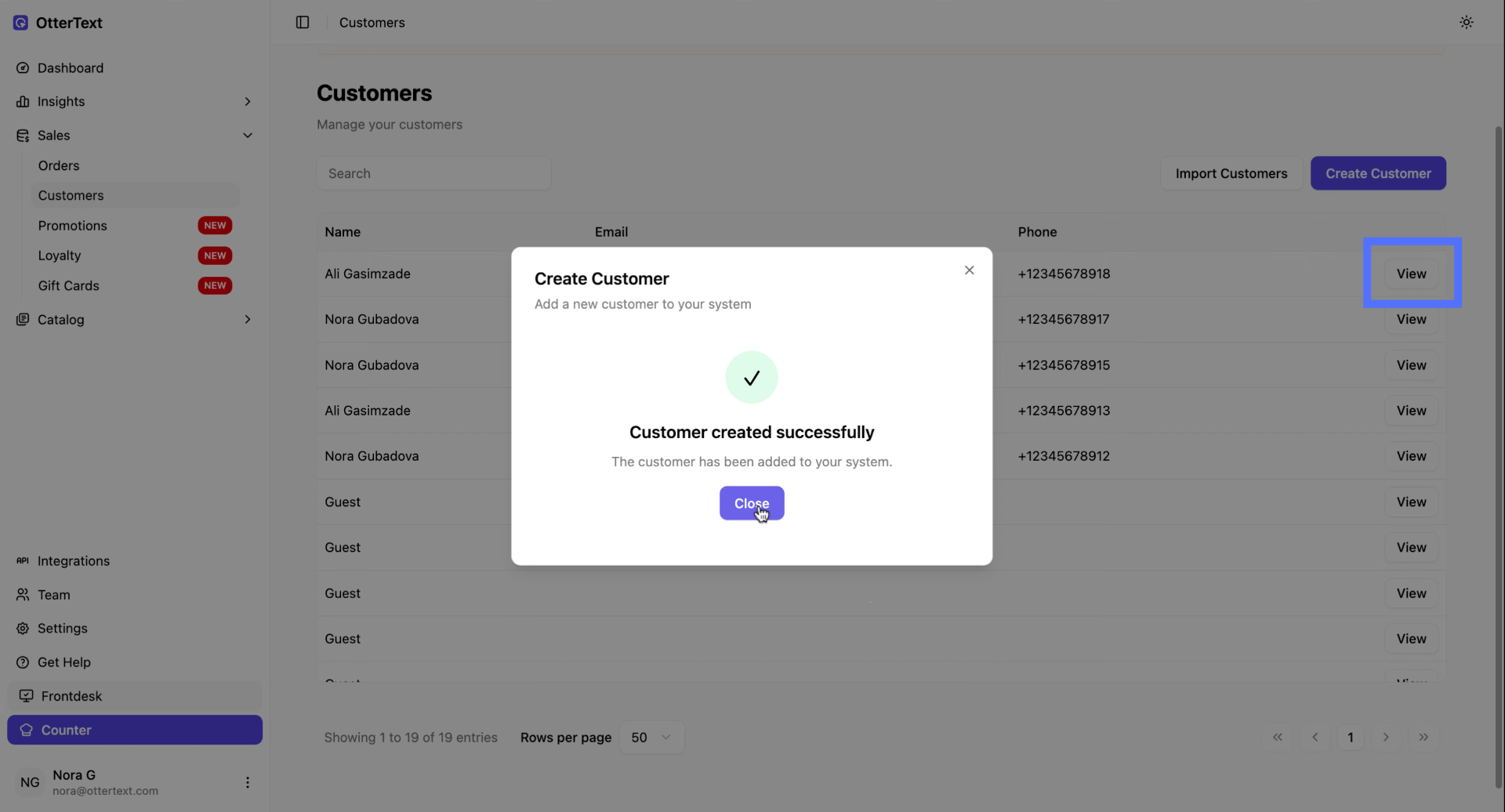
If you just need to add one person, the “Create Customer” button is the fastest way to do it.
-
Open Customers
From the left-hand menu, go to Sales, then click Customers. On the top right of the Customers page, click Create Customer.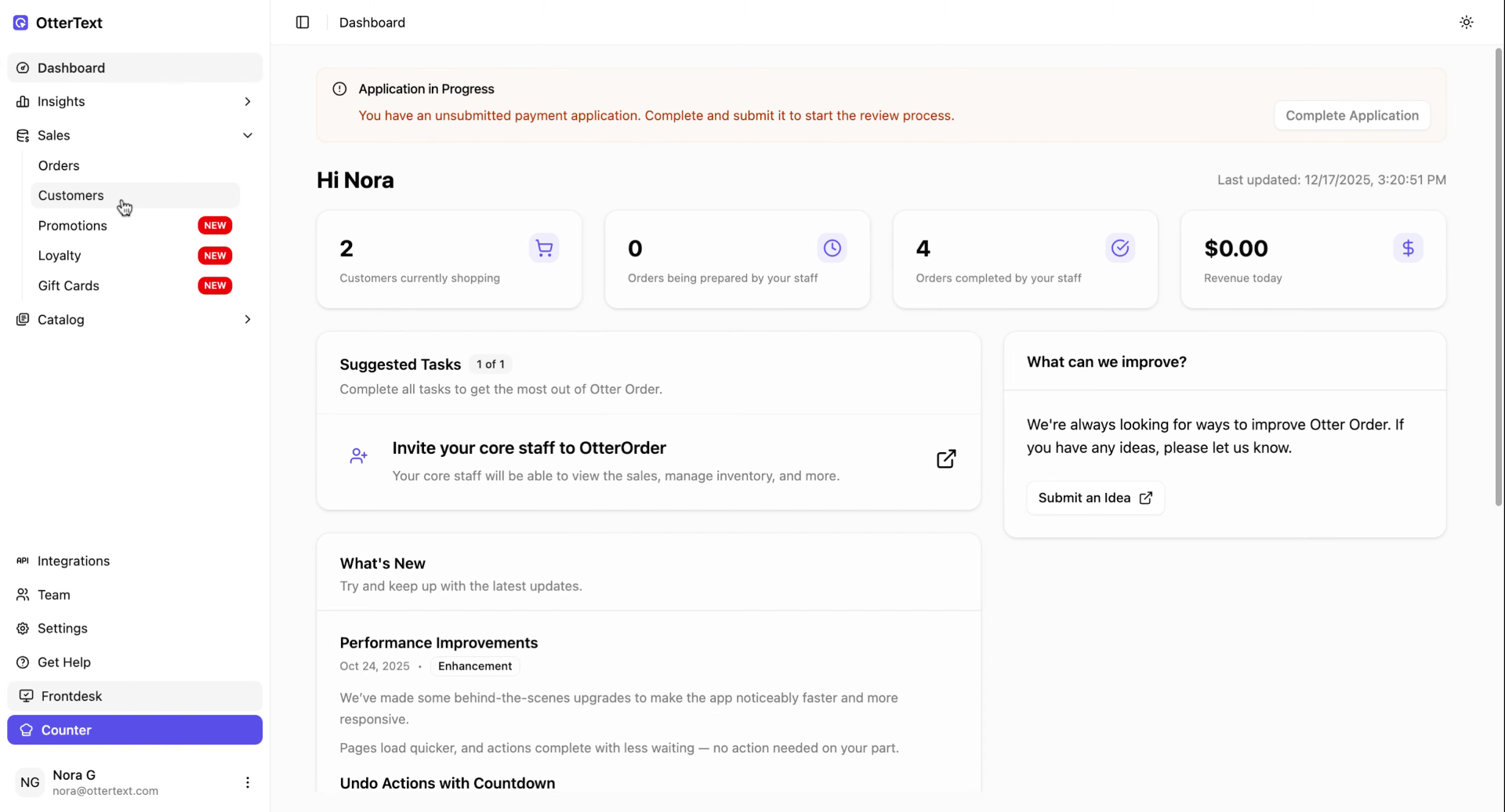
-
Fill in the customer details
A “Create Customer” window will pop up. Add the basics first: First Name, Last Name, and Phone Number. Then add Email (if you have it) and the Membership Level (for example: Gold, Silver, etc.).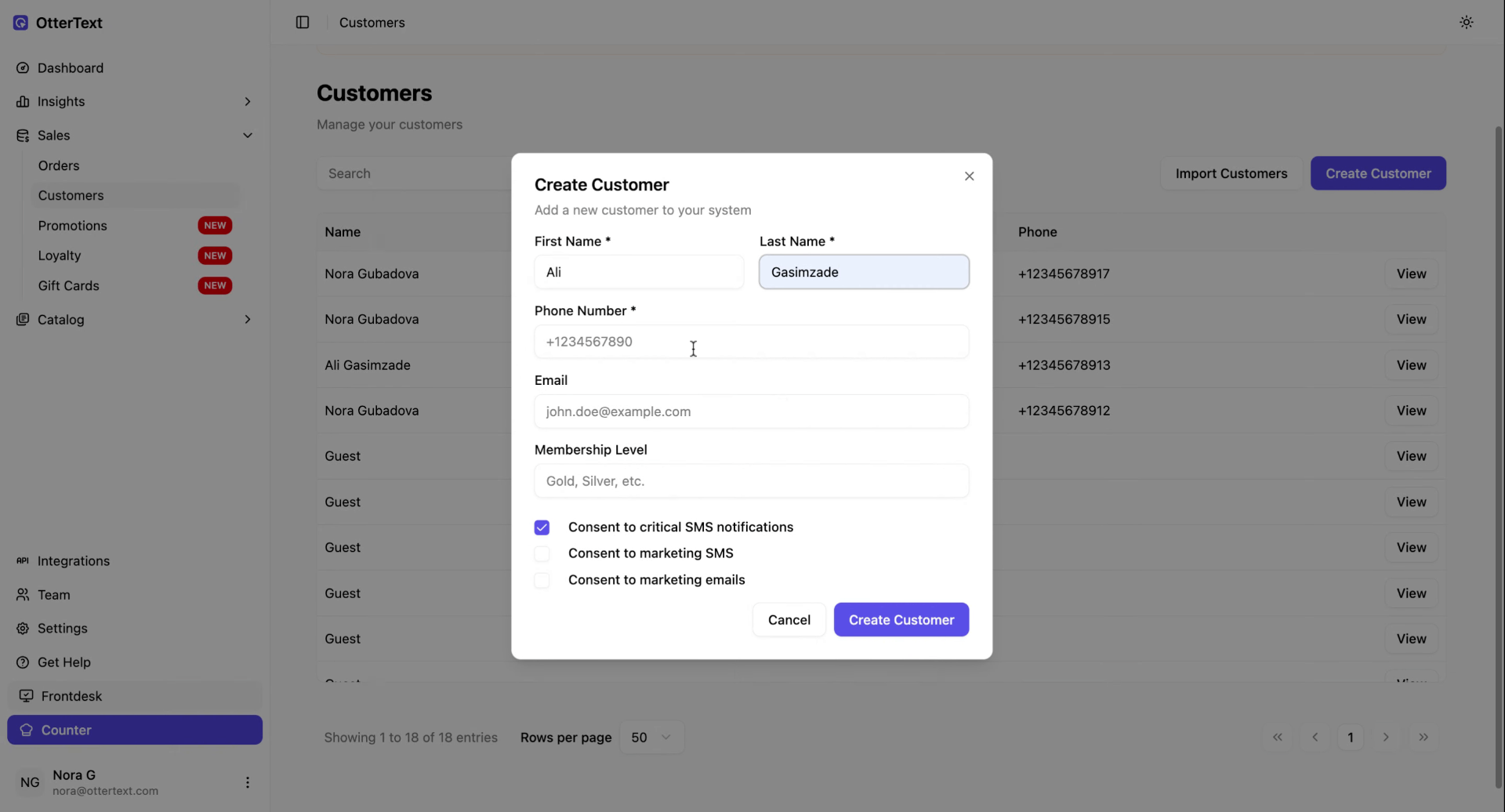
-
Choose their consent options
At the bottom, you’ll see consent checkboxes. Select the ones that apply for this customer (for example, Consent to critical SMS notifications if they should receive important updates). Only check what you have permission to send. -
Save the customer
Click Create Customer. That’s it — they’ll show up right away in your Customers list, and you can click View next to their name anytime to review or update their info.