
Importing your customers into OtterOrder is fast and intuitive. Just follow the steps below, and you’ll have your list uploaded in no time.
Step-by-Step Instructions
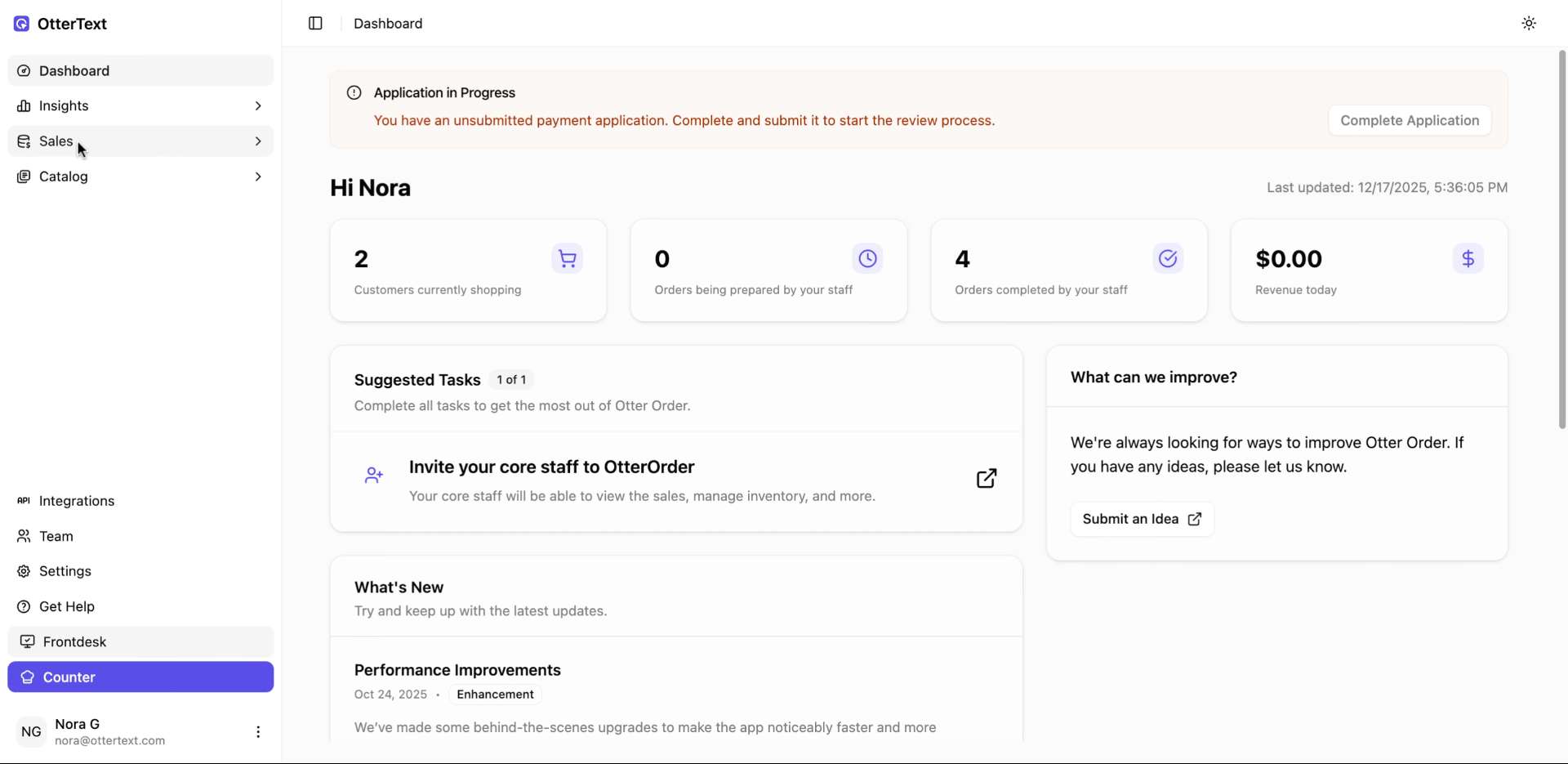
- From the left-hand menu, click Sales, then select Customers.
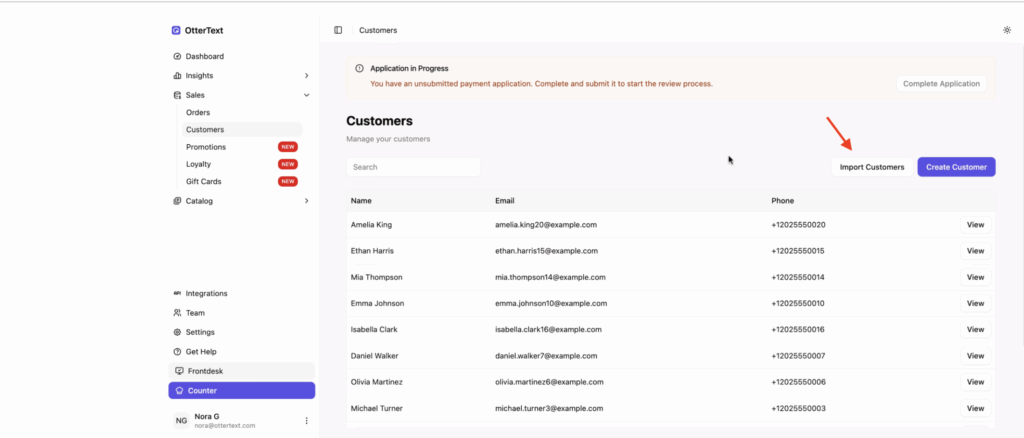
- On the Customers page, click Import Customers.
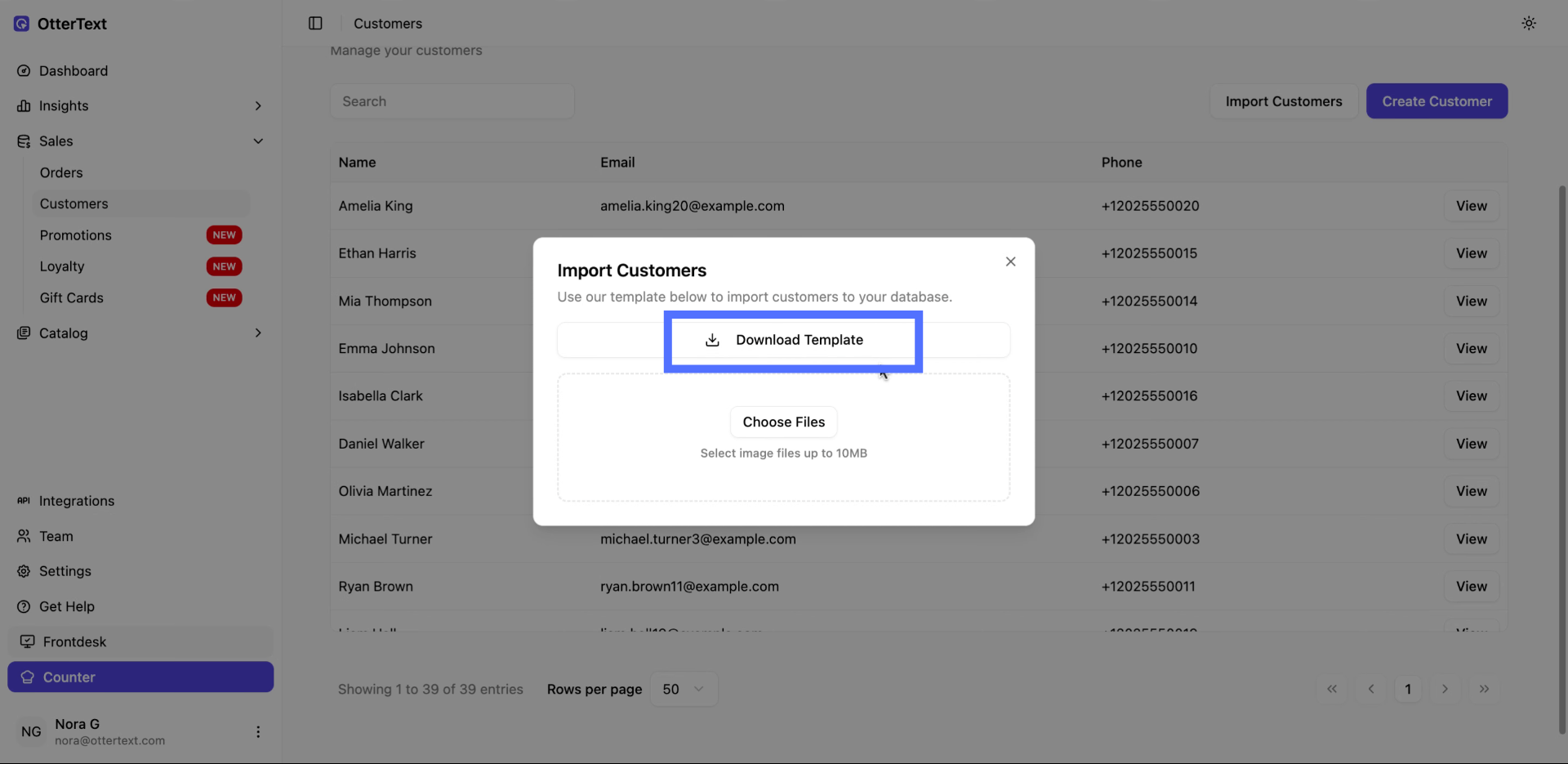
- You’ll see a sample file showing how your CSV should be formatted. If you need it, download that sample and use it as a template.
- Once your file is ready, click to upload it. Make sure your file includes a header row with fields like First
Name, Last Name, Email, Phone Number, Membership Level, and Consent to Critical SMS.
OtterOrder Sample File - After selecting your file, review it quickly to ensure everything looks right — especially phone numbers and consent fields.
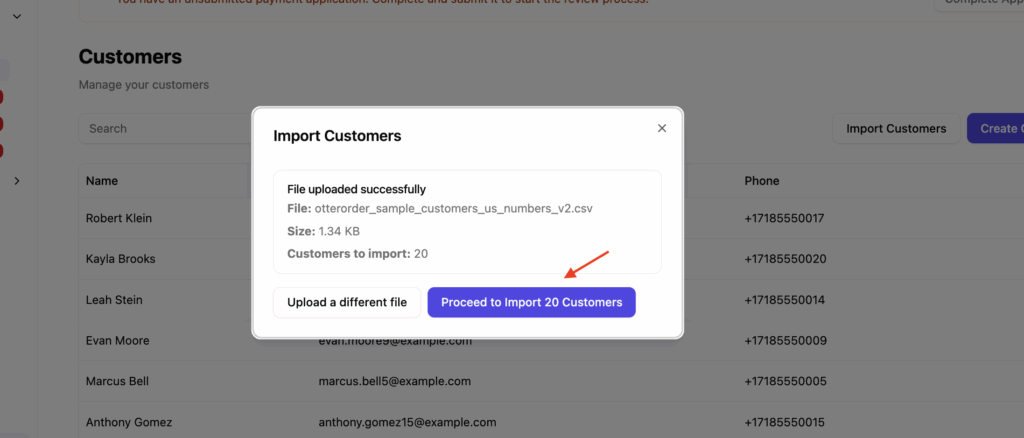
- Click Proceed to import, and refresh your page, and then OtterOrder will start processing your upload.
- When the import completes, your customers will be added to the system and ready to use.