
QR Table Ordering allows customers to scan a code at their table, browse your menu, place an order, and pay directly from their phone. This creates a fast, contactless ordering experience and ensures every order is correctly attached to the table where it originated.
Set Up Your Tables and QR Codes
-
Log in to your OtterOrder dashboard.
-
In the left-hand menu, go to Catalog→ Seating.
-
Select Create a Seat to create a new table or service area.
Enter the seat name (for example: Table 1, Table 2, Lane 6, etc.).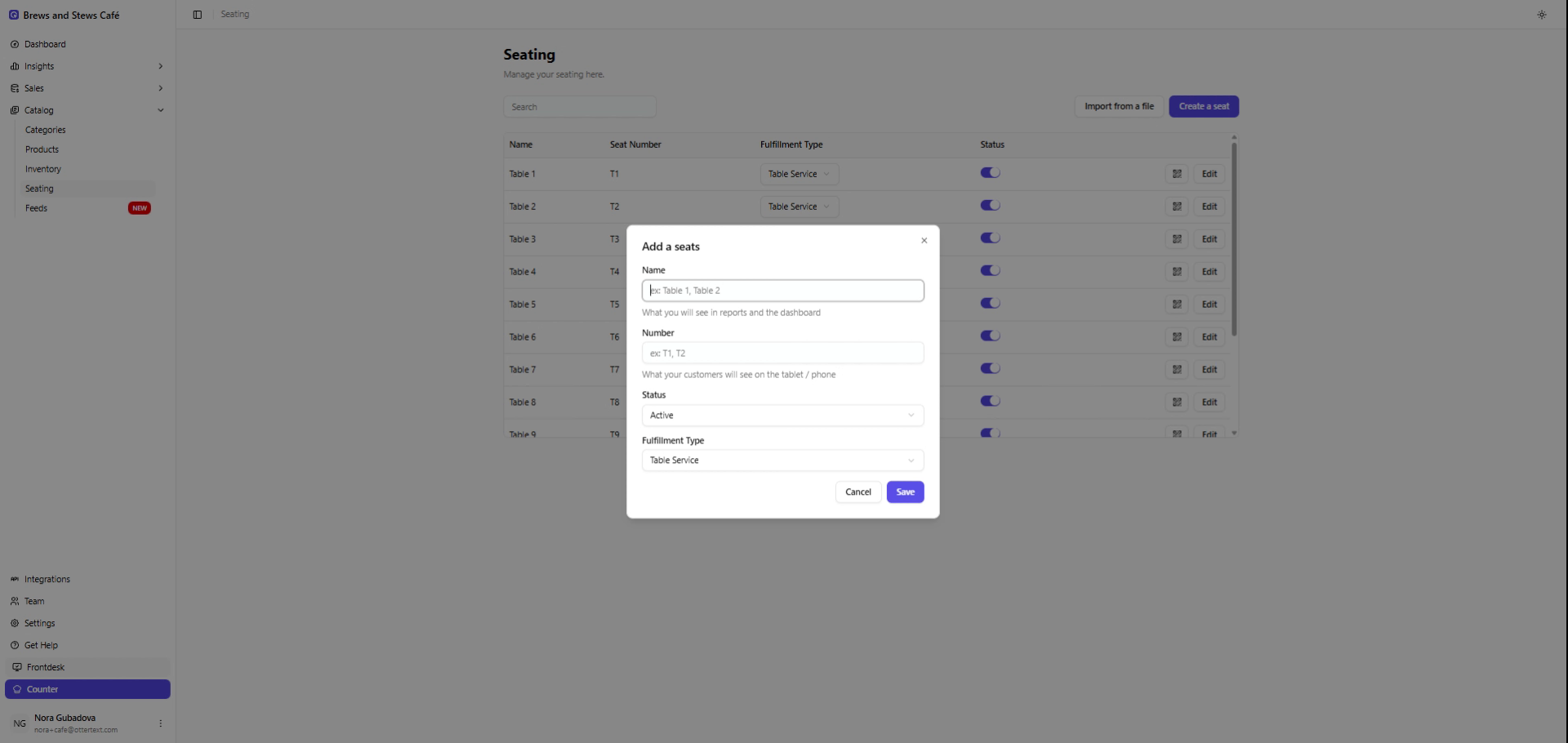
-
Choose the Fulfillment Type:
-
Table Service – staff deliver orders to the table
-
Self Service – customers pick up their own order
-
-
Save the seat.
OtterOrder will automatically generate a unique QR code for this table.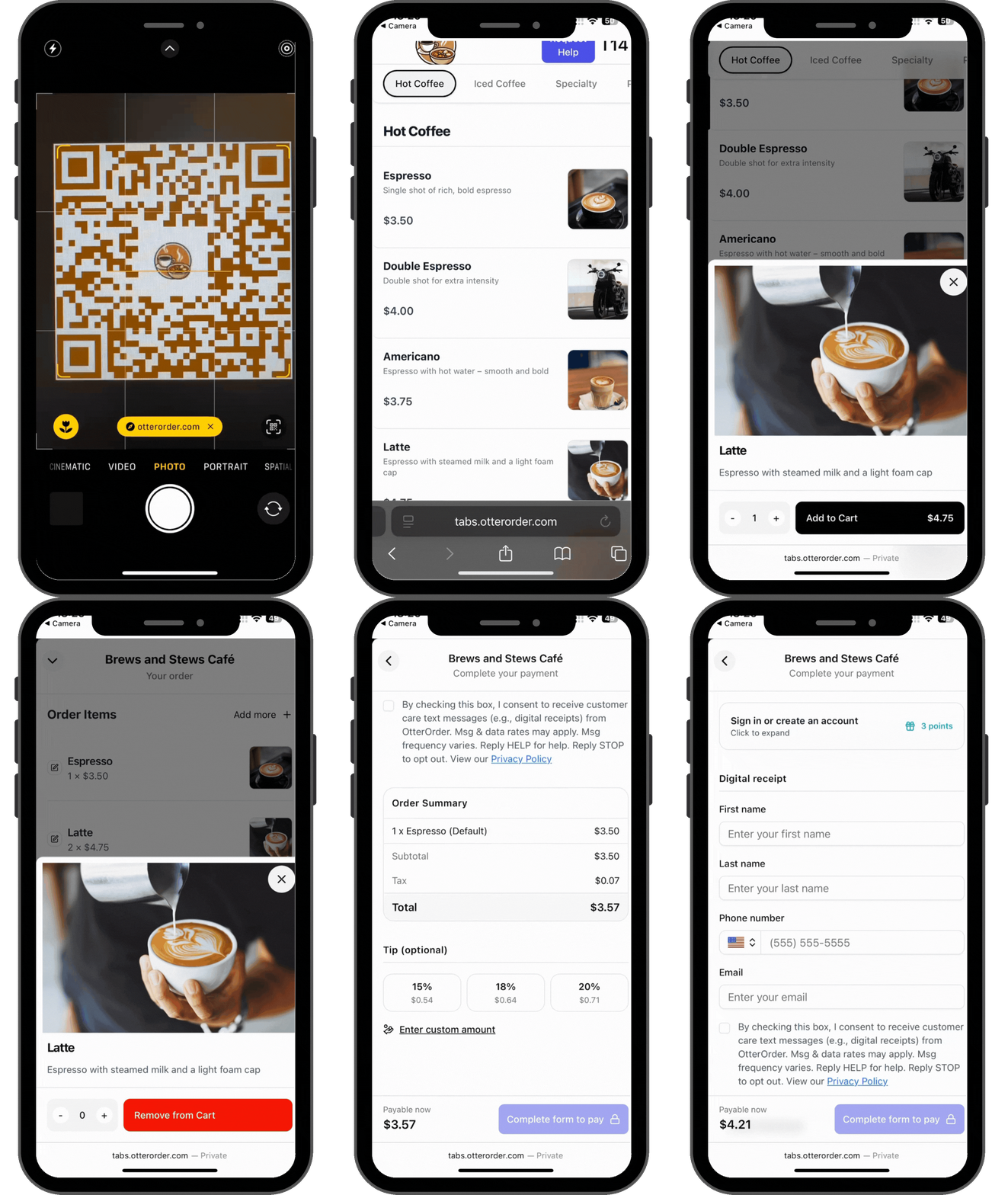
Download and Place Your QR Codes
Once a seat is created, you can download its QR code and print it.
Attach each printed QR code to the correct table.
Each QR represents a specific seat, so it’s important that Table 1’s QR is placed on Table 1, and so on. This ensures orders are routed to the correct location.
How Customers Use QR Ordering
When the customer scans the QR code at their table:
-
They are taken directly to your Storefront (your online menu).
-
They browse available items, add them to their cart, and complete payment.
-
The order appears in your Orders section with the correct table number attached.
-
Your team can then deliver the order or prepare it for pickup based on the fulfillment type you selected.
Why Use QR Ordering
QR ordering streamlines dine-in and self-service operations by:
-
Reducing wait times
-
Eliminating lines
-
Ensuring accurate table assignment
-
Allowing staff to focus on preparation instead of manual order taking
-
Giving customers a modern, familiar ordering experience
You can also place QR codes on counters, in waiting areas, or anywhere customers might want to order without standing in line.