
The Loyalty setup screen is where you define how customers earn points, how they redeem them, and what the effective cashback looks like for your store.
You can access it from the left-hand menu under Sales → Loyalty and then opening the Setup tab.
At the top of the page you’ll see a “Set Up Loyalty Program” header with three main sections: Points Earning, Points Redemption, and Program Settings, plus a live Program Preview at the bottom.
Points Earning
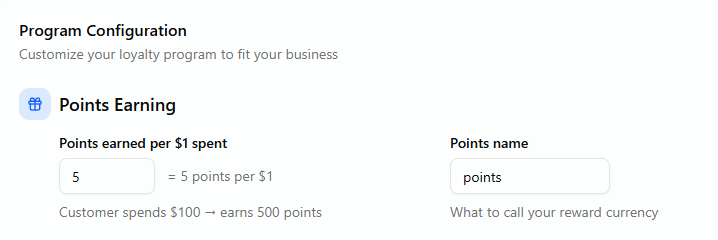
In the Points Earning block you decide how many points a customer earns for every dollar spent and what you want to call your points.
For example, you might set it to “4 points per $1 spent” and keep the points name simply as “points”. As you change the earn rate, the small helper text underneath updates (e.g. “Customer spends $100 — earns 400 points”) so you can see what that looks like in a real transaction.
This is the base of your program: it defines how quickly customers accumulate rewards.
Points Redemption
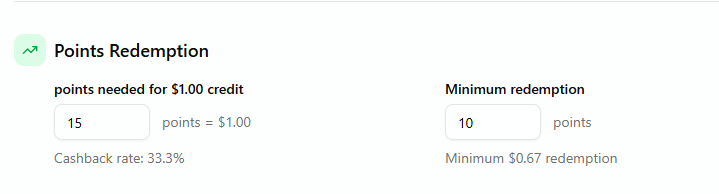
The next block controls how points convert back into store credit.
Here you set how many points are needed for a $10 credit (or your base credit value) and the minimum number of points a customer must have before they can redeem. The system uses those numbers to show an effective cashback rate, so you can see at a glance whether you’re running a 5%, 10%, or 20% style program.
When you adjust the earn rate above or the redemption rate here, the cashback percentage recalculates automatically.
Program Settings
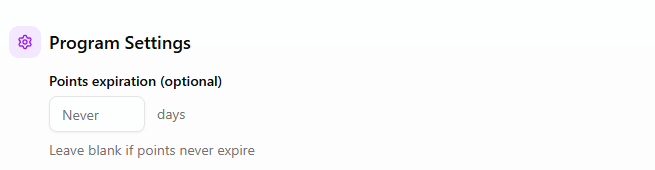
Program Settings let you decide whether points expire.
If you leave the field blank or choose “Never”, points stay on the account indefinitely. If you enter a number of days, points will expire that long after they’re earned. This gives you control over liability while still keeping the program attractive.
Program Preview
At the bottom of the page is the Program Preview card. This simulates a simple example—such as a customer spending $300—and shows:
- How many points they would earn
- What that translates to in credit
- The effective cashback rate
The preview updates every time you change earning, redemption, or expiry settings, so you can tune the program until you’re happy with the balance between value for customers and margin for the business.

When everything looks right, click Update Loyalty Program. A confirmation appears, and your new loyalty rules go live for future transactions.